Share and collaborate
Attachments
How images, PDFs and other files sync in a shared folder, which plans include them, and what to do when one will not sync.
Anything in a shared folder that is not a Markdown note, a canvas or a base is an attachment to Nectenda: images, PDFs, audio and other files. Attachments are encrypted like notes, and sync on the paid plans. On the Free plan, notes sync and attachments stay on the device that has them.
How they sync
A note merges keystroke by keystroke. An attachment does not: it is sent whole, and the newest version replaces the old one. If two people change the same attachment at the same time, the version that loses is kept beside it as a copy named … (conflicted copy …), so nothing is lost.
A canvas or a base is not an attachment. Each syncs like a note, and two people can work on one at once; see Canvases together and Bases together. Boards made with the Kanban plugin, and drawings the Excalidraw plugin saves as Markdown (.excalidraw.md, its default), are notes too, so they sync on every plan; an image placed in a drawing is an attachment.
Keep attachments inside the shared folder
By default, Obsidian saves a file you drop into a note at the top of your vault — outside the shared folder, where nobody else can see it. The note then shows a broken link for everyone else.
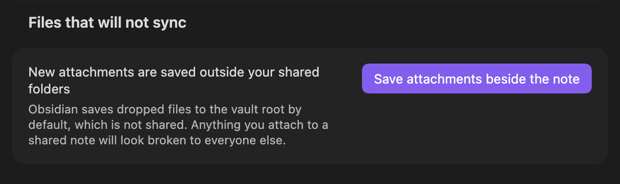
If your vault is set up that way, your organisation's page in the Nectenda settings shows New attachments are saved outside your shared folders under Files that will not sync, in the Plan, storage and devices section. Choose Save attachments beside the note to fix it. You can also change it yourself in Obsidian's Settings → Files and links.
Files a shared note links to that sit outside every shared folder are listed in the same place, with a button to move each one in.
Size and storage
Each plan has a storage allowance and a largest-file size; see Plans, storage and devices. A file over the size limit does not sync, and a notice names it. When storage is full, new uploads wait under Waiting for space until you free some — Manage storage on your organisation's page shows what is taking it up.
Large attachments on one device
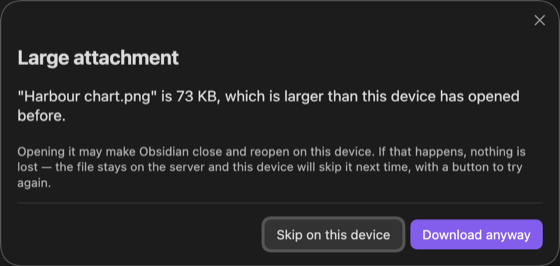
A device may not download every large attachment, to save memory. It happens mostly on phones. Each device downloads attachments without asking until a large one crashes the app while downloading. That file is then skipped on that device, and from then on it asks before downloading any file of about that size or larger, in a Large attachment dialog: choose Download anyway or Skip on this device.
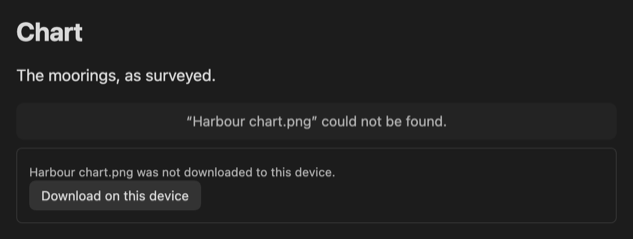
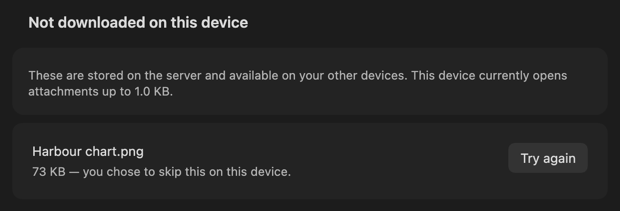
Where one was skipped, the note shows Download on this device in its place, and your organisation's page lists it under Not downloaded on this device with Try again.