
Get started
Choose your passphrase and save your recovery key
Your passphrase makes the keys that encrypt your notes, and nobody can reset it. Choose one, then save the recovery key that is your only way back.
Your passphrase is what your encryption keys are made from, on your device. It is not sent to Nectenda in any form, so nobody at Nectenda can see it, reset it or recover it for you. The recovery key is the one way back if you forget it.
Before you start
- Sign in. The passphrase is asked for straight after.
- A password manager, or somewhere safe and offline, for the recovery key.
Steps
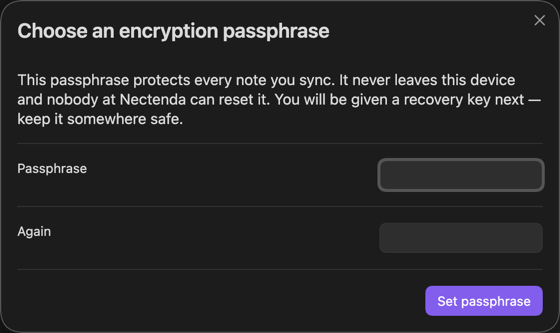
- In Choose an encryption passphrase, type a passphrase of at least eight characters in Passphrase, and again in Again. A few unrelated words are easier to remember and harder to guess than a short password.
- Choose Set passphrase.
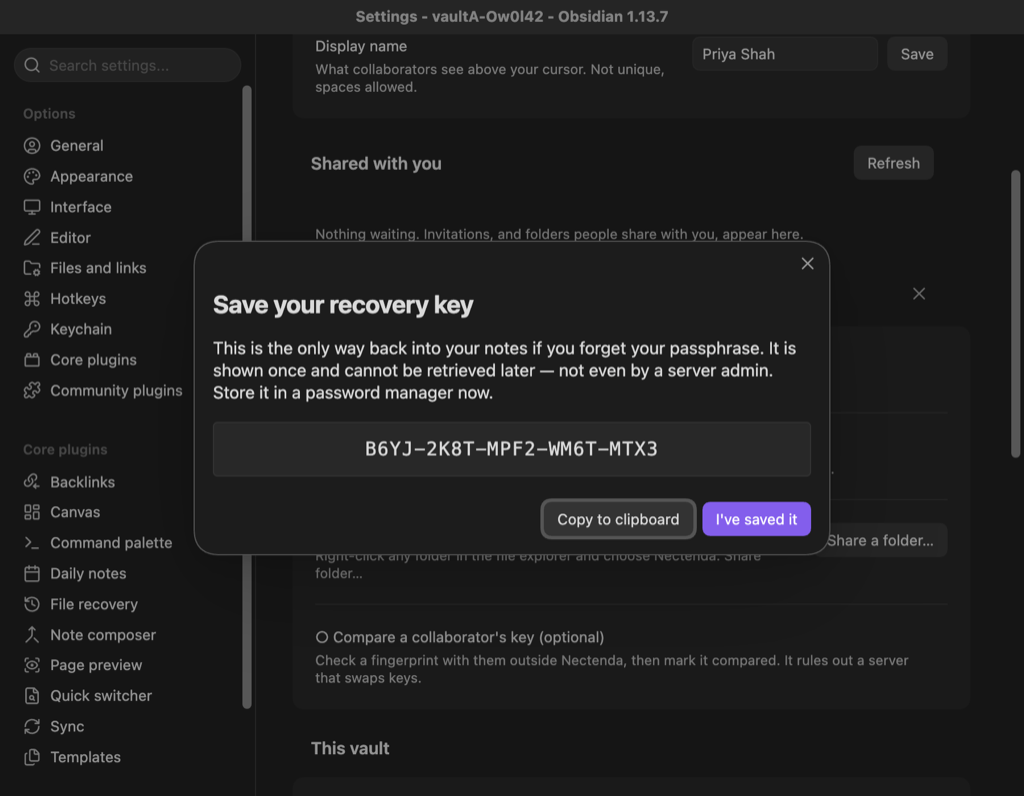
- Save your recovery key opens. Choose Copy to clipboard and paste the key into your password manager, or write it down.
- Choose I've saved it.
Check the result
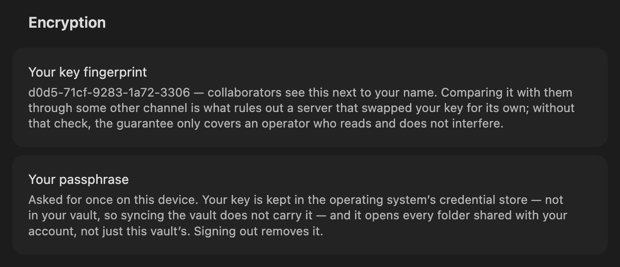
In Settings → Nectenda → Security, under Encryption, you see Your key fingerprint and Your passphrase. On a device that can keep your key safely, the description says it was asked for once on this device.
Troubleshooting
Will I have to type it every time?
Usually once per device. After that, the key is kept in your operating system's credential store — not in your vault — and signing out removes it. A device with no credential store asks again when a folder needs it.
I typed it wrong on a new device
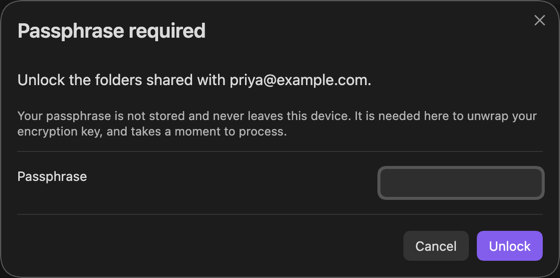
You are simply asked again. A wrong passphrase never signs you out. If you close the prompt, the device stays signed in with its folders locked, and Enter passphrase under Security → Encryption opens it again later. So does the command Nectenda: Enter passphrase.
I have lost my passphrase
Use your recovery key: see Forgot your passphrase. Without the recovery key there is no way back in, by design. You can still start over with a new, empty account at the same address.
Can I change my passphrase?
Not directly: there is no control for it. Recovering with your recovery key sets a new one, as in Forgot your passphrase, and gives you a new recovery key to save; the old one stops working. Recovery is offered on the sign-in screen and while your folders are locked, so on a device that is signed in you would sign out first, and then add your shared folders again after signing back in. Your notes stay on the device throughout.